SimKiosk.

SIMKIOSK / RACING SIMULATOR SOFTWARE

Run your sims.
Without dedicated sim staff.

Drivers scan a QR code, sign in on their phone and start their session. SimKiosk handles the kiosk experience, so you don’t need a dedicated attendant operating each sim. The PC stays locked down, with no access to the Windows desktop.

Arrange a walkthrough
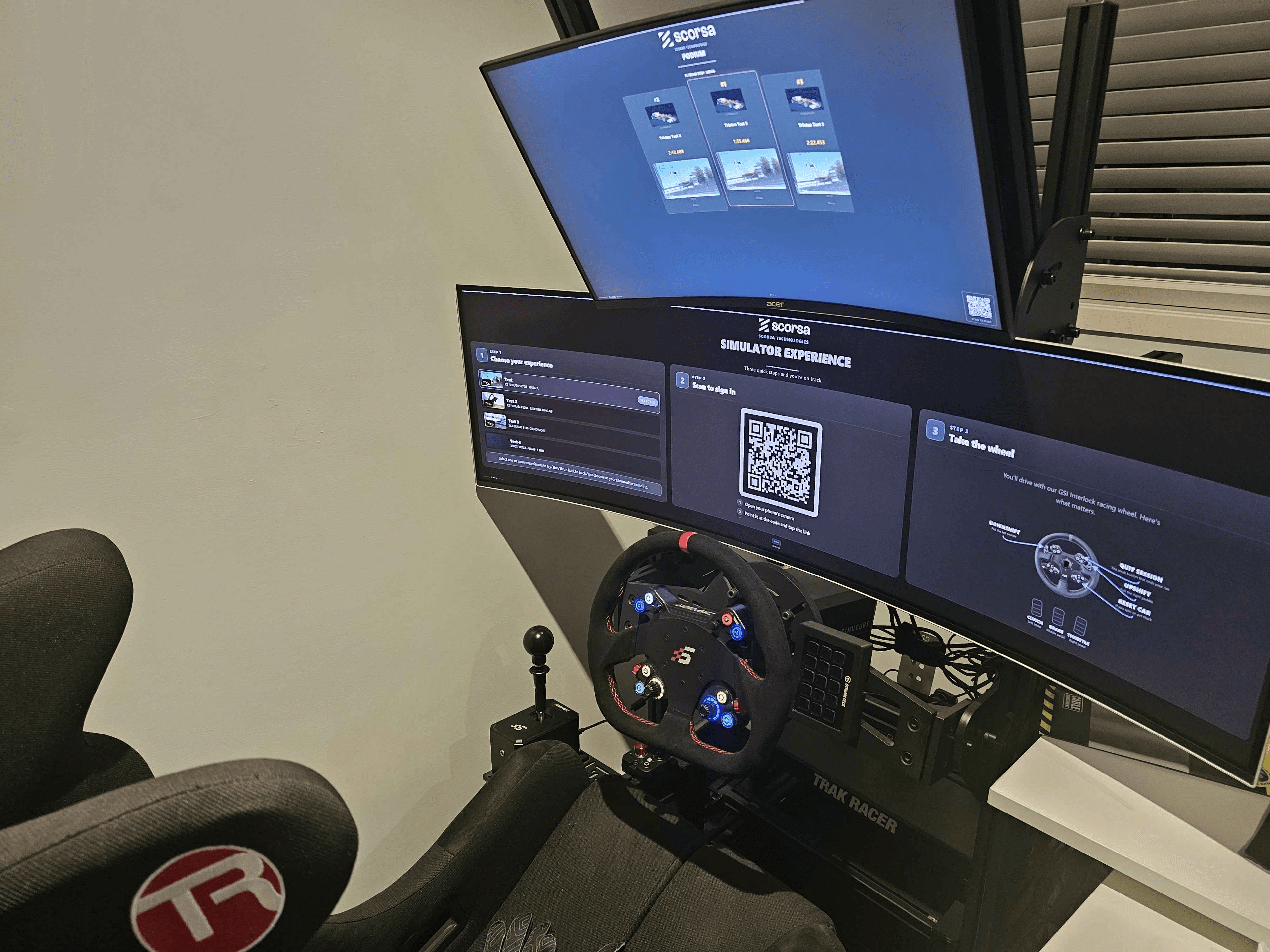
SimKiosk running on a racing rig, with QR sign-in on the main screen and a leaderboard above the wheel.

SimKiosk on a real rig: driver sign-in below, venue leaderboard above.

THE PRODUCT

On the rig. In your browser.

A simple entry point for drivers. Full control for your team.

Station sign-in and venue leaderboard on a real racing rig.

Station

Installed on the racing PC

Drivers enter through the QR code, not the Windows desktop. Station presents the experiences you offer and runs the session on a locked-down PC. Customers get the racing experience; your team keeps control of the machine.
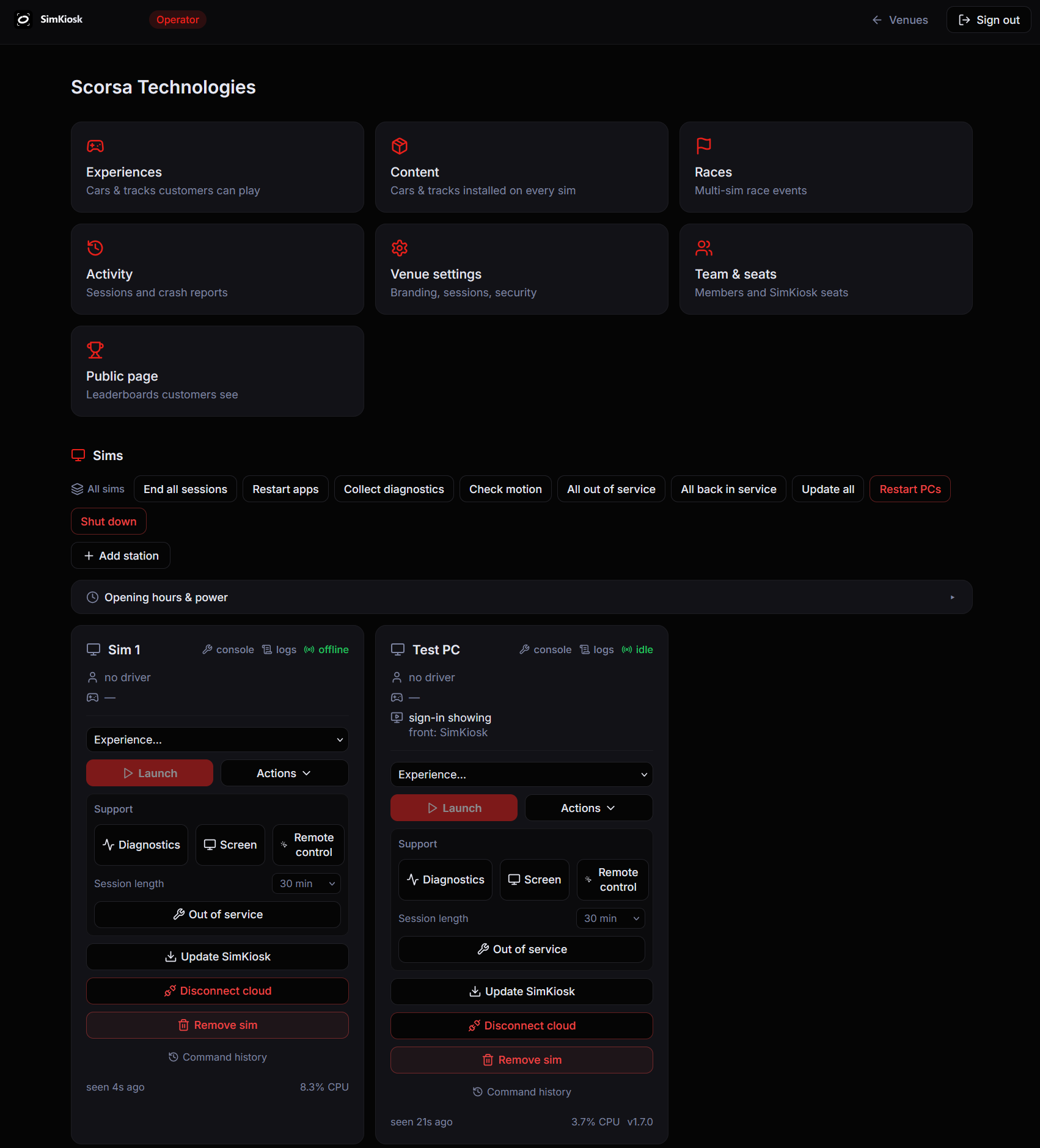
Play venue dashboard showing experiences, activity and connected sim controls.
The venue dashboard in Play. ↗ View full size

Play

Opened in your browser

Manage your rigs from a browser instead of staffing every PC. See sessions, change the experiences on offer and maintain connected machines through Play. Use RustDesk when a rig needs remote support.

THE DRIVER’S PHONE

Scan. Choose. Drive.

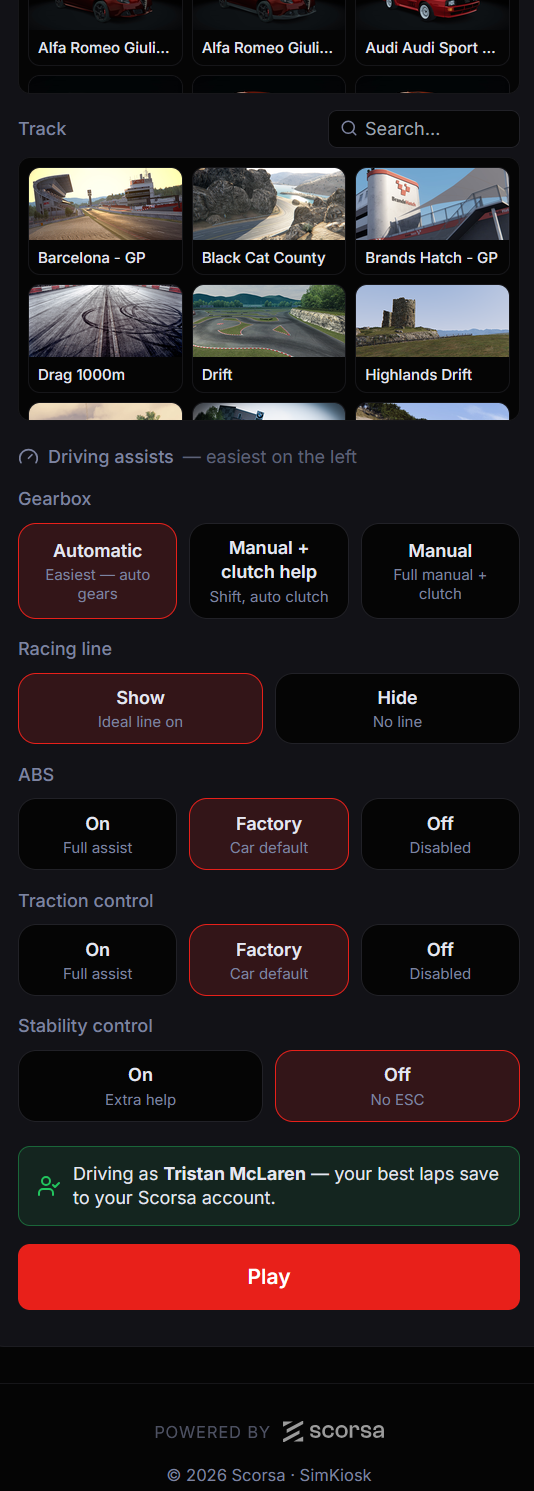
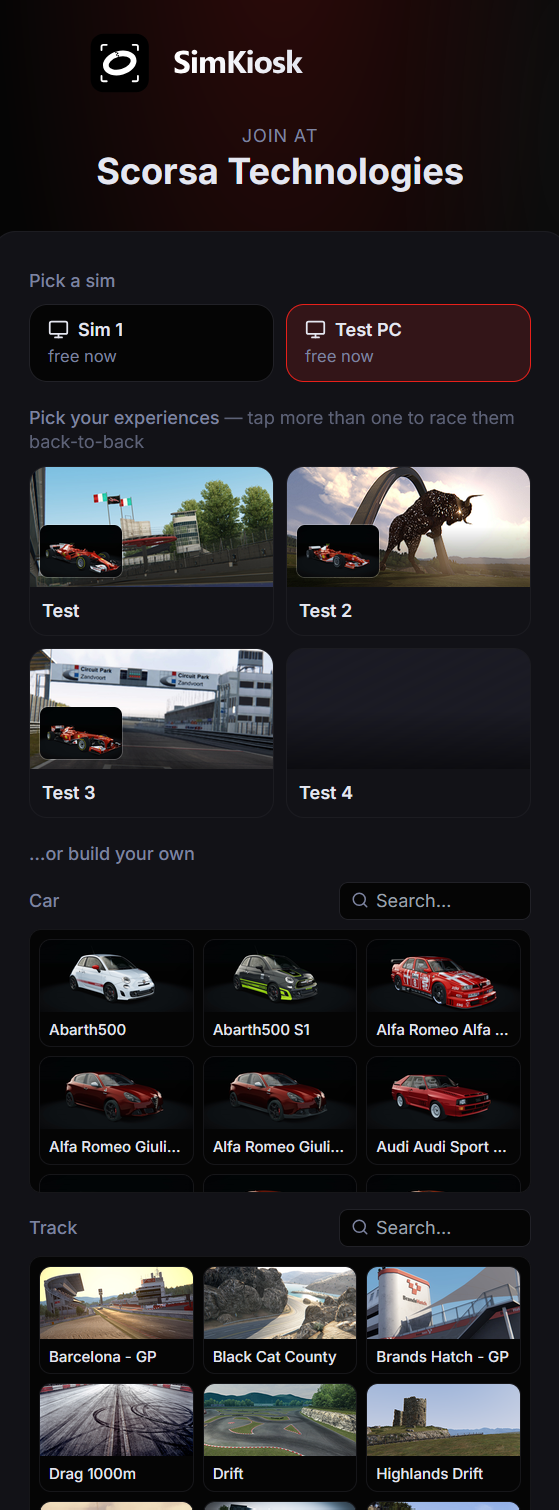
The QR code brings drivers here. They choose a sim and experience, set their driving assists and press Play. Sign-in happens on their phone, leaving the racing PC for racing.

Phone sign-in showing sim selection, experiences, cars and tracks.
Choose a sim and experience. ↗ View full size
Phone controls for gearbox, racing line and driving assists, followed by the Play button.
Set assists and start racing. ↗ View full size

YOUR TEAM’S VIEW

See what happened. Take action remotely.

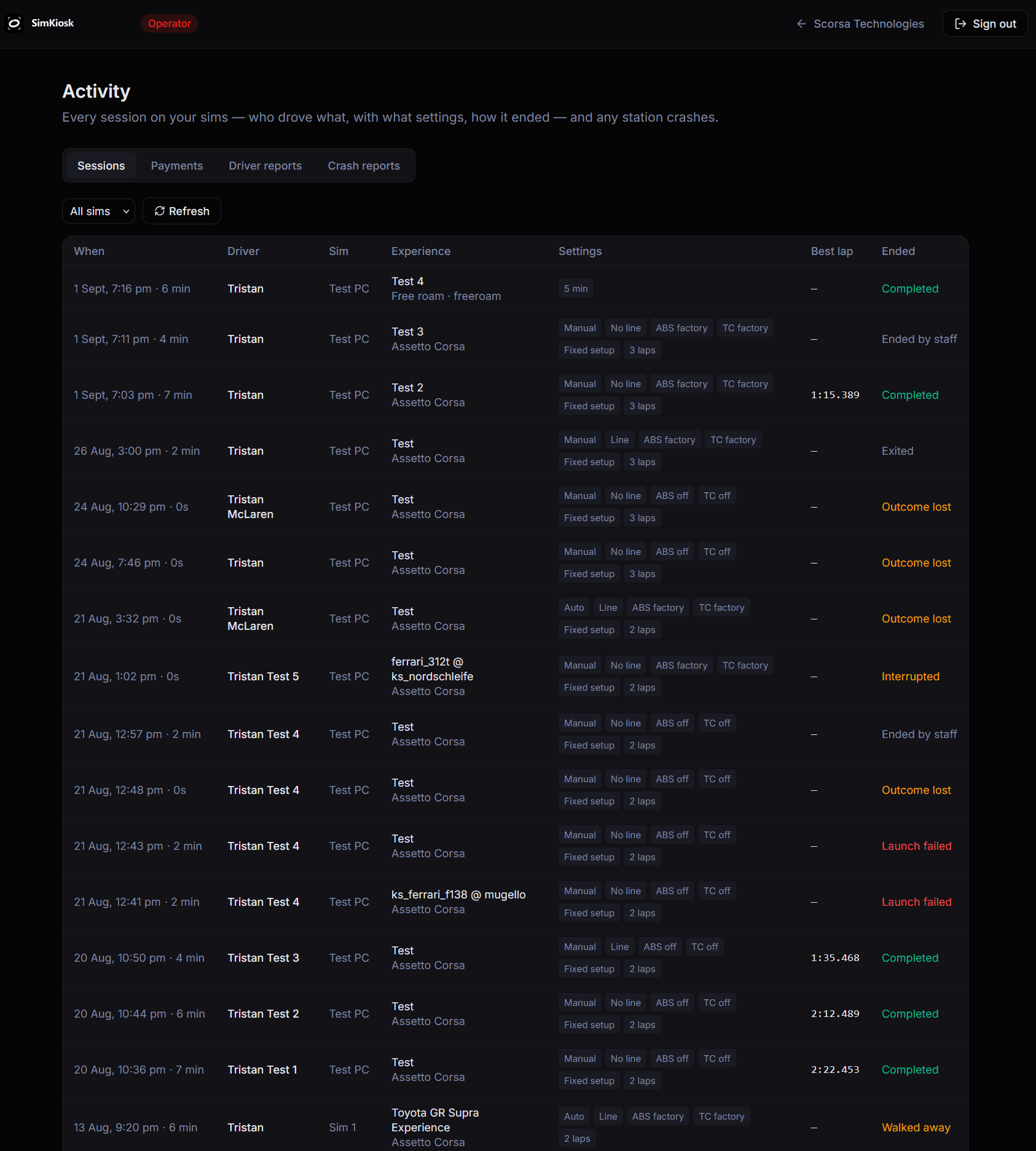
Play activity table showing sessions, driving settings, best laps and how sessions ended.
Actual session history in Play. ↗ View full size

Session history

See who drove, which experience they chose, their settings and how the session ended.

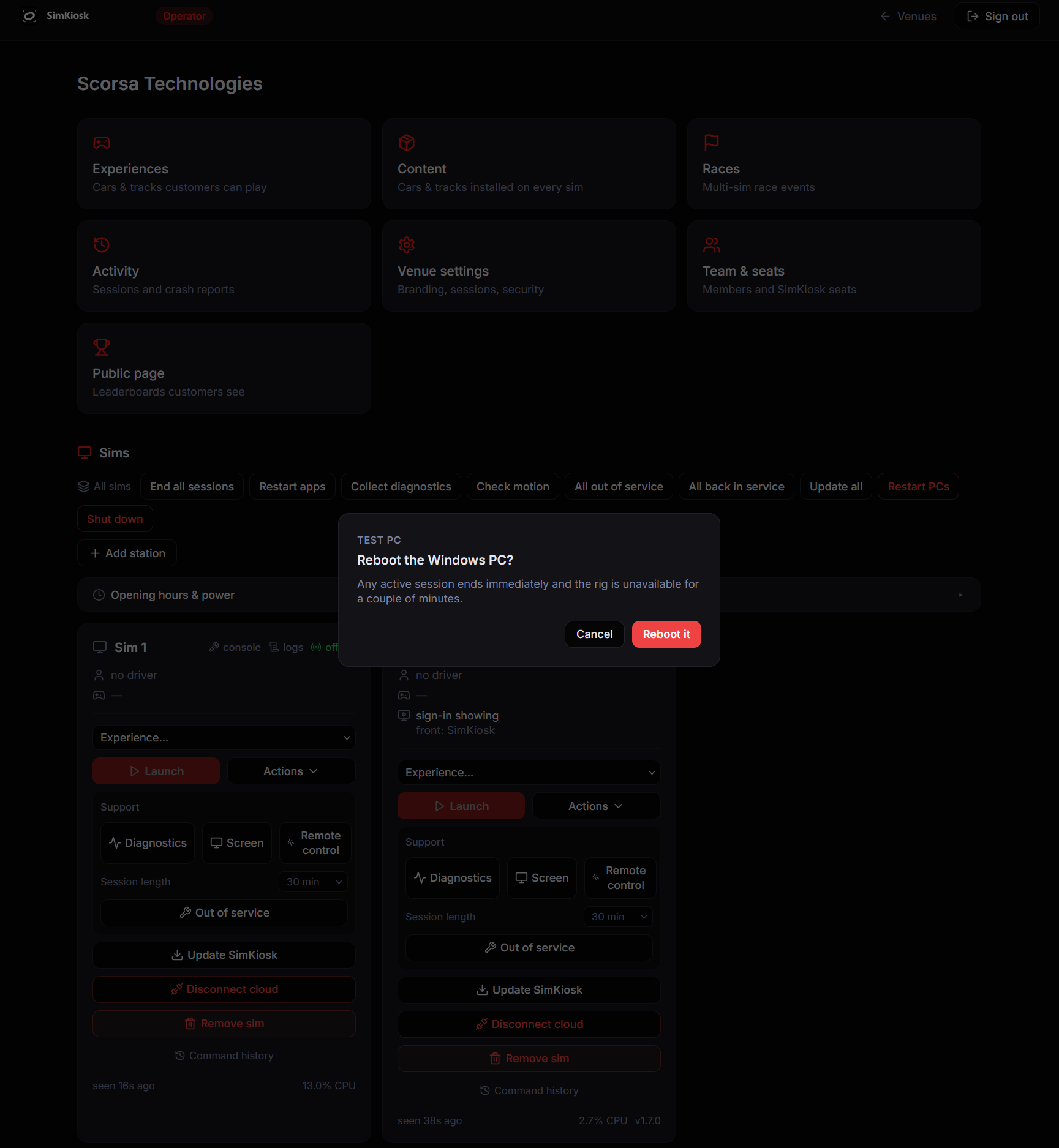
Play asking an operator to confirm a Windows PC reboot and explaining its effect on an active session.
A PC reboot confirmation in Play. ↗ View full size

PC controls from your browser

Support connected rigs from Play. The reboot confirmation explains its effect before you continue.

What goes on the PC?

The Windows installer includes Station and the background Agent that connects the rig to Play. Setup lets you select supported simulators and asks you to accept the terms before use.

You supply the racing hardware and the appropriate commercial licences for your simulators and content. Connecting and testing wheels and pedals still happens at the rig. Cloud controls need a working network connection.

SEE THE ACTUAL SOFTWARE

See a session run itself.

See the journey from scanning the QR code to getting on track, then see how your team manages it from Play. Tell us how many rigs you run and where you currently need staff involvement.